Smart TV Privacy Guide: Turn Off the Microphone and Viewing Tracking
Smartor 편집팀
September 27, 2026

You do not have to give up Netflix, YouTube, Disney+, or other streaming apps just because you want less data collection from your smart TV. The useful first step is to separate features that are often bundled together in people’s minds but not in the television itself: the microphone used for voice commands, viewing-data or content-recognition features, personalized advertising and recommendations, and the histories stored by individual streaming accounts. Turning off one does not necessarily turn off the others.
This guide does not assume that every television from a brand has the same menu. Labels and paths can change by model year, operating system, country, and firmware. Instead, it gives U.S. viewers a reliable sequence for disabling an always-ready microphone and reducing viewing-data sharing while testing that ordinary streaming still works. It also distinguishes a hands-free microphone in the television from a push-to-talk microphone in the remote.
A modern television is closer to an internet-connected computer than a passive screen. It has an operating system, applications, user accounts, recommendations, advertising, and sometimes voice control. The settings for those features are not always presented in one place. That is why “turn off the microphone” and “turn off tracking” are not interchangeable instructions—and why declining one optional privacy choice does not necessarily make every streaming app unusable.
Voice data is processed so the system can turn speech into a command or search query. A television with hands-free wake-word support may keep its built-in microphone ready for a trigger, while another model listens only after the viewer presses a button on the remote. Whether audio is processed locally, sent to a server, or saved in an account depends on the service and its settings. A microphone-off icon therefore is only one checkpoint; any linked voice-assistant account deserves a separate review.
Viewing information can be collected without using a microphone. Automatic content recognition, often shortened to ACR, and similar systems are designed to identify content displayed on the screen for measurement, recommendations, or advertising. In a 2017 case, the Federal Trade Commission alleged that VIZIO collected second-by-second viewing information from 11 million televisions without users’ knowledge or consent. The settlement required prominent disclosure and affirmative express consent. That case does not prove that every current TV behaves the same way; it demonstrates why viewing data must be treated as a separate privacy category.
App activity is a third layer. A streaming service may maintain its own searches, playback activity, profiles, device list, and recommendations. Turning off a television manufacturer’s personalized advertising does not automatically clear an app’s watch history. Clearing a watch history does not necessarily disable content recognition at the operating-system level. A meaningful privacy cleanup therefore examines the TV, the voice assistant, and the streaming services individually.
A review is especially useful for households with hands-free voice control enabled, families sharing one account, and televisions installed in home offices, bedrooms, counseling rooms, or other places where private conversations occur. If you do not use hands-free commands, leaving a microphone waiting for a wake word may provide little benefit. However, the mere presence of a microphone does not prove that every conversation is continuously recorded or uploaded. Check the model’s documented operation and privacy notice before making that claim.
People who mainly watch cable boxes, game consoles, antennas, or streaming sticks through HDMI should also look at viewing-information settings. The FTC’s VIZIO complaint described information about video displayed from cable, set-top boxes, DVDs, over-the-air broadcasts, and streaming devices. Do not assume your current television covers the same sources; use that history as a reason to read the current model’s description rather than limiting your review to built-in apps.
Voice control can also be an accessibility tool. A family member may depend on speech to change volume, launch apps, enable captions, or navigate menus. In that situation, the best answer may be to disable hands-free listening while retaining push-to-talk on the remote, if the model supports that arrangement. Privacy and accessibility do not have to be all-or-nothing choices. The goal is to keep the functions a household needs and remove the ones it does not.
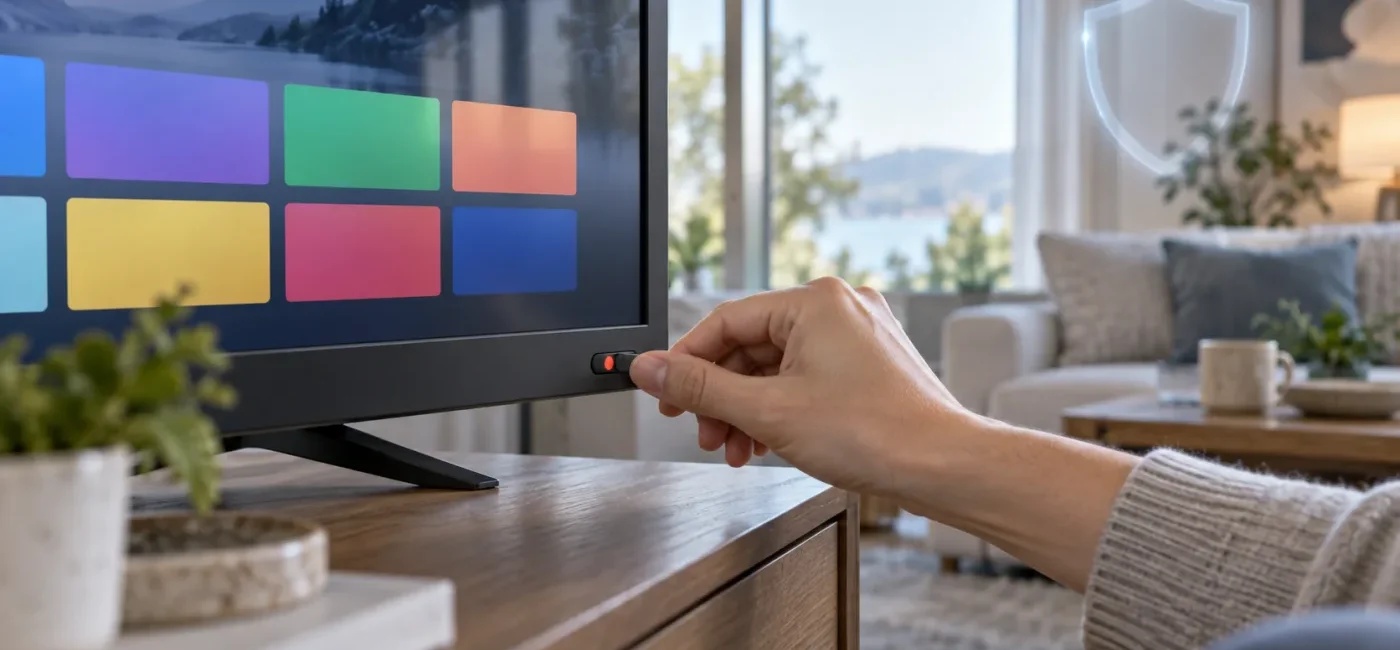
Inspect the lower bezel, side, back, and any camera module for a small switch marked with a microphone symbol. Do not confuse it with the power button or reset opening; consult the component diagram in the official manual. After changing the switch, look for an on-screen microphone-off notice. On some designs, this switch can disable the television’s hands-free microphone while the remote’s microphone still works only when its voice button is pressed.
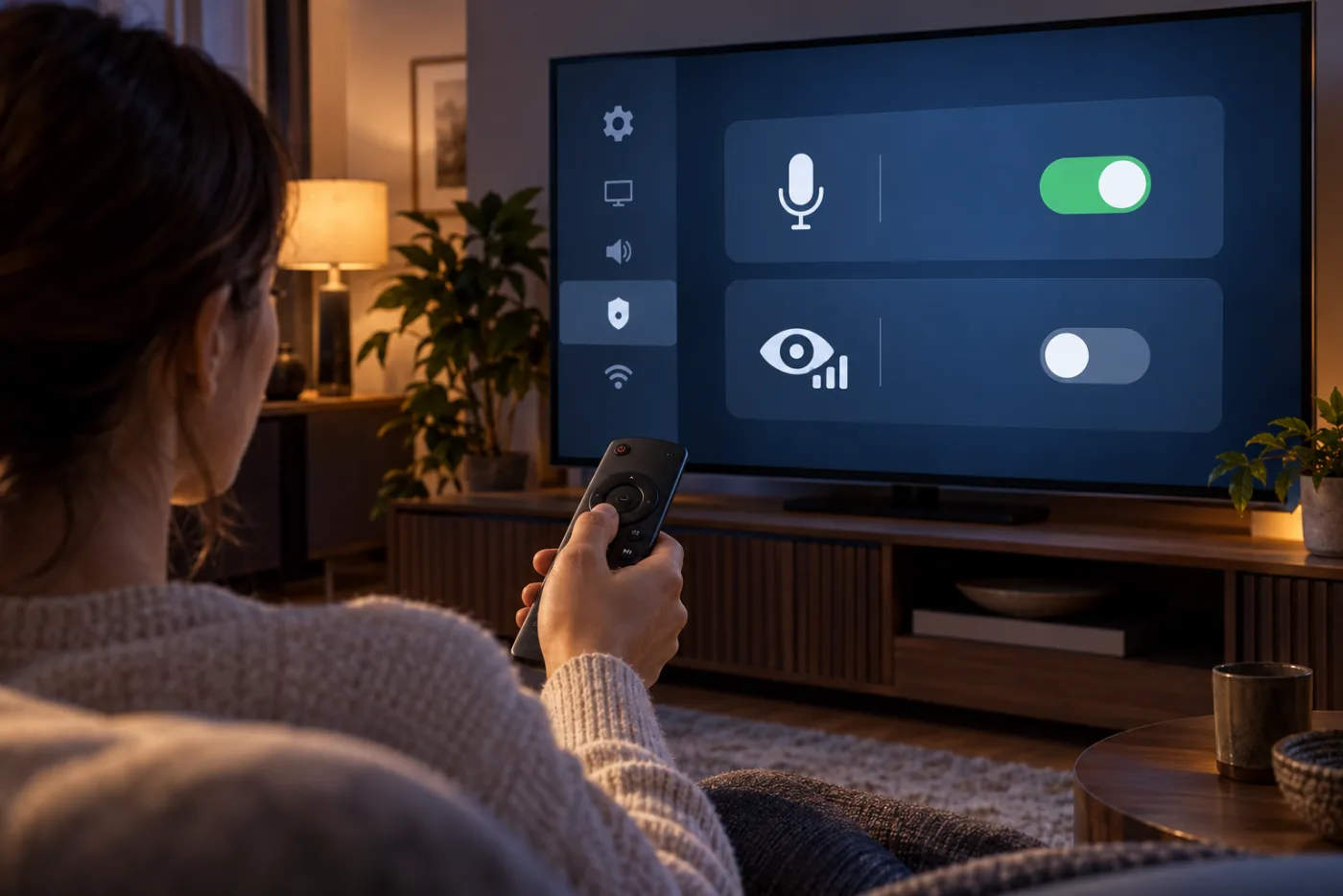
In Settings, look for sections such as Privacy, General, Voice, Voice Assistant, Hands-Free Voice, or Wake Word. If the platform lets you turn off only hands-free activation and keep push-to-talk, that can preserve useful voice search without leaving a room microphone ready for a wake word. Check linked Amazon, Google, or manufacturer accounts as well. Disconnecting a service, stopping future collection, and deleting prior voice history may be three separate actions.
Search menus such as Terms & Privacy, Privacy Choices, Viewing Data, Viewing Information, Live Plus, Smart TV Experience, or Content Recognition. Read the description for references to identifying programs, measuring viewing, improving recommendations, personalizing ads, or analyzing external inputs. Save the choice and restart the television. If you cannot find the option, search the manufacturer’s official support site using the exact model number plus “privacy” or “viewing information.”
An ad-personalization switch usually does not remove every advertisement. It may reduce the use of viewing habits or account activity to tailor ads. Look for names such as Limit Ad Tracking, Interest-Based Ads, Personalized Ads, or Reset Advertising ID. Resetting an identifier is not necessarily the same as opting out, so read both controls before assuming the task is complete.
Find the model number on the rear label or under Settings > Support/About, then record the firmware version. Privacy instructions vary by year and model, so a brand name alone is not enough. A private photo is useful, but there is no reason to publish the complete serial number. Check for an official update next. CISA recommends keeping supported software current and using automatic updates where possible to reduce exposure to known vulnerabilities.
Update the television firmware and its apps first. Instructions based on an older interface may point to a menu that moved or no longer exists, and stale software may not save a selection correctly. Do not interrupt power during an update; restart once it is complete. If an old television no longer receives security updates, consider disconnecting its built-in smart platform and using a currently supported HDMI streaming device instead.
Use the physical switch if one exists and confirm the on-screen status. Review any hands-free or wake-word option in the settings too. If you do not want push-to-talk voice search either, review voice-service permissions and linked accounts. A separate camera, where present, may have its own shutter or permission. Do not assume that a microphone switch also controls the camera.
Under privacy or terms, distinguish viewing information, content recognition, personalized recommendations, and personalized advertising. Declining every agreement without reading it may disable an app store or another service, so start with optional data uses you do not need. If a choice is described as required, read the official explanation of what function requires it. Photographing the settings can help you compare them after a future update.
Sign in to the TV manufacturer, voice assistant, and streaming-service accounts and inspect their device lists and privacy choices. Remove televisions and integrations you no longer use. If appropriate, delete voice history or choose an automatic deletion period. Samsung’s U.S. Customization Service notice, for example, describes the use of device and service activity, including voice commands, for customized services and explains choices for disabling the service. Owners of other platforms should read the current U.S. notice from their own manufacturer rather than applying Samsung’s terms to a different television.
Uninstall applications you do not use. If the operating system displays per-app permissions for the microphone, camera, or location, allow only what an app needs. Some television platforms do not expose phone-like permission controls; in that case, review the app account’s privacy settings and sign out of or remove unused services. Be especially cautious with unofficial applications and screen-mirroring receivers from unclear publishers.
Restart the television and open two or three apps you use most. Confirm sign-in, video playback, pause and resume, captions, audio tracks, profile selection, and any purchase controls you need. Test HDMI, antenna channels, or screen mirroring only if you use them. Finally, say the wake word to confirm that hands-free activation no longer responds. If you kept push-to-talk, verify that voice recognition starts only after you press the remote button.
Use strong, unique passwords for the TV account and router, and keep the router updated. An IoT or guest network can separate a television from work computers and sensitive devices, but phone remotes, casting, and local media may require the devices to be on the same network. Test those functions after making a network change. Disable remote access or external control features you do not use.
If something stops working, reverse only the last setting you changed. Restoring every privacy option at once makes it hard to identify what the app actually required. A factory reset can erase accounts, apps, accessibility choices, and picture calibration, so it should be a last resort. Before resetting, make sure you have the necessary sign-in and recovery information and document accessibility settings used by anyone in the household.
First, identify the television’s exact model and country, then use the manufacturer’s official support site to find its manual and current privacy instructions. Prefer documentation for the installed firmware over a search-result snippet or an old community answer. Second, if the TV shows a privacy-policy link or QR code, verify that the destination belongs to the manufacturer before signing in.
Third, read the privacy notice for the categories collected, purposes, recipients, retention, and opt-out method. Look for specific references to voice commands, app usage, viewing information, and advertising identifiers rather than relying only on a broad phrase such as “service improvement.” Fourth, use regulator material such as the FTC case to understand the issue, but do not turn a historical case involving one company into a claim about every current model.
Finally, verify the settings after updates. New features, revised terms, a factory reset, or reconnecting an account can prompt new choices or move a menu. A quarterly check—and a quick review after a major firmware update—is a manageable routine for confirming microphone status, viewing information, personalized ads, and linked accounts.
Video playback generally does not require a microphone. Voice search or hands-free launching may stop, while remote and on-screen-keyboard controls remain available. Behavior varies by model and app, so test playback after the change.
You cannot safely identify it by appearance alone. It may be a status LED, infrared receiver, ambient-light sensor, or reset opening. Check the official component diagram. Do not tape over holes or vents without guidance, because blocking a sensor or ventilation opening can cause problems.
It is useful for reducing microphone availability, but it should not be assumed to disable viewing information, personalized advertising, or histories stored by apps. Review those controls and connected accounts separately.
Usually, an ACR or viewing-information control governs content identification and data use, not Wi-Fi itself. Exact effects vary, so read the description on your model and confirm that apps still play.
Usually not. Ads may remain, while the service reduces the use of viewing activity or inferred interests to tailor them. Check the platform’s description for the exact effect.
Many remotes activate voice input only while a button is pressed, but that cannot be assumed for every device. A battery-powered remote, a hands-free remote, and a microphone built into the TV can operate differently. Verify the manual and the on-screen microphone indicator.
It is an option if you do not use built-in apps, but it also stops streaming and may prevent security updates. If you need the smart platform, keeping it updated and disabling unnecessary data features is more practical. For an unsupported older TV, a supported external streaming device may be a better compromise.
It may remove local settings and account links, but do not assume that it deletes records already stored by a manufacturer, voice assistant, or streaming service. Use each account’s privacy page to review deletion procedures.
Not every update changes privacy selections, but a new feature or revised agreement may ask for consent again or move the controls. Check microphone, viewing-information, and advertising settings after a major update.
By the Smartor Editorial Team. This article provides general consumer privacy and device-security information. Menu names and behavior vary by model, region, and firmware; use the current official manual and privacy notice for your television.
브라우저 메뉴에서 앱 설치 또는 홈 화면에 추가를 선택해 주세요.