
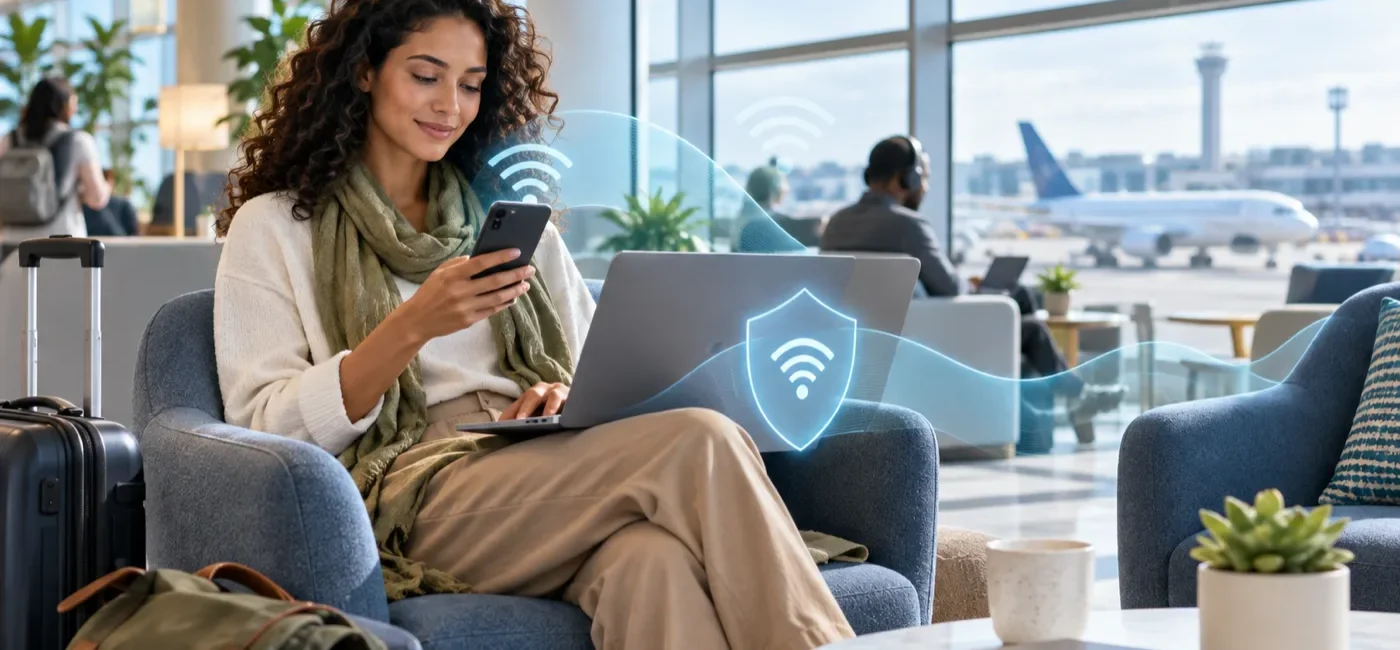
Free Wi-Fi at an airport, hotel, coffee shop, or library can save mobile data and make it easier to work on a larger screen. The risk is not simply that every public network is hostile. Problems arise when you choose a look-alike hotspot, let a device reconnect automatically to an old network name, or perform a sensitive task without matching the connection to the risk.
A safer routine is straightforward: verify who operates the network, reduce automatic connections and sharing, and move high-risk activity to cellular data, a personal hotspot, or an organization-approved connection. This guide gives U.S. travelers and everyday users a practical sequence for phones and laptops. It does not endorse a particular paid VPN, and your employer, bank, health provider, or school may impose stricter requirements.
The 30-second rule before you connect
- Get the exact network name from a person or sign controlled by the venue. Do not pick whichever similar name has the strongest signal.
- Move banking transfers, tax filing, identity verification, and other highly sensitive work to cellular data or your personal hotspot.
- Look for HTTPS, but do not treat the padlock as proof that a website is legitimate. A fraudulent site can also use HTTPS.
- Restrict file sharing, AirDrop or nearby sharing, Bluetooth discovery, and automatic Wi-Fi joining.
- Log out and forget the network when you finish.
The Federal Communications Commission advises users to watch for imposter hotspots and notes that cellular data may be more secure when transmitting sensitive information. The FCC also says frequent public Wi-Fi users can consider a virtual private network, or VPN, to encrypt transmissions between their device and the internet. A VPN is one layer, however—not a cure for phishing, unsafe apps, stolen credentials, or a compromised device.
Before connecting: verify the network in six steps
1. Ask for the exact SSID and sign-in method
An SSID is the network name shown in your Wi-Fi list. If a café is named “Maple Corner,” you cannot tell whether MapleCorner_Free, Maple_Guest, or Free_Maple_WiFi is legitimate just by looking. Confirm the exact spelling, capitalization, password, and whether a sign-in page should appear. Use a front-desk employee, in-room information card, airport information display, or another source the venue controls.
A password alone is not proof of safety. A password displayed on a wall may be known to everyone in the room, and a malicious hotspot can imitate both a name and a shared password. Treat the password as one verification detail, not the identity of the network.
2. Stop when two names look almost identical
If you see two networks that differ by one character, or one adds words such as “Fast,” “VIP,” or “5G,” ask the venue which one is genuine. Be cautious if an unfamiliar option provides internet access immediately while the venue says a sign-in page should appear. Signal strength only shows that a radio is nearby; it does not establish who owns it.
3. Turn off automatic joining and clear old networks
A phone that previously saved a generic name such as “FreeWiFi” may try to reconnect when another device broadcasts that name. Reduce that risk by disabling automatic connection to open or unknown networks. Delete airport, hotel, conference, and café networks you no longer need.
On an iPhone or iPad, review Auto-Join and Private Wi-Fi Address under the information button next to the network. Android menus vary by manufacturer and version, so search Settings for “saved networks,” “connect automatically,” “network preferences,” or “MAC address.” Do this at home before a trip, when you have time to check the result.
4. Update the operating system and browser
You do not need to begin a huge update at the airport gate. Instead, update your phone, laptop, browser, and approved VPN app the day before travel, then restart each device. CISA emphasizes that software updates deliver fixes for known security weaknesses and recommends automatic updates where possible. Hardware and software that no longer receives security support should be replaced.
5. Restrict sharing and discovery
- On Windows, classify an unfamiliar connection as a public network and disable network discovery and file/printer sharing.
- On macOS, turn off File Sharing, Screen Sharing, and Remote Login unless you specifically need them.
- Set AirDrop, Nearby Share, or Quick Share to contacts only or a temporary limited mode, then turn it back off.
- Turn off Bluetooth when you do not need it. If you pair with a rental car or shared device, compare the displayed pairing code yourself.
6. Classify the task, not just the network
Put the activity you are about to perform into one of three buckets. Reading public news or checking a map is relatively low sensitivity. Personal email and ordinary shopping are medium sensitivity and deserve current software, official apps, and strong account protection. Bank transfers, investment trades, tax records, medical portals, identity documents, and administrator accounts are high sensitivity. Make “not on public Wi-Fi” the default for that last group.
At the sign-in page: pause before accepting
Hotels and airports often open a browser page for terms, a room number, or a daily access code. This is called a captive portal. A legitimate portal may use an initial connection to direct you to its login page, but that does not make requests for an email password, financial account, or software installation normal.
- Confirm that the venue name and branding match your physical location.
- Stop if free access requires a payment card, Social Security number, or the password to your email account.
- Do not install a “security certificate,” device-management profile, browser extension, or unknown app unless the organization’s official IT instructions require it and you have independently verified those instructions.
- On a work or school device, follow the organization’s policy instead of adding your own certificate, VPN, or profile.
- Do not click through a certificate warning just to make the portal load. Forget the network and verify the connection instructions.
If a page offers “Continue with Google” or “Continue with Apple,” inspect the address bar before entering anything. A legitimate authentication flow normally moves to the account provider’s official domain. A password manager refusing to fill credentials on an unfamiliar domain is a useful warning, not an inconvenience to override.
What can wait, and what can be done carefully?
Relatively low-sensitivity activities
- Reading public news, weather, and transportation information
- Viewing documents and maps you already downloaded
- General searches that do not require personal information
- Checking flight status in an airline’s official app
Activities that require safeguards
- Personal email: Use the official app, multi-factor authentication, and a current operating system. Reject sign-in prompts you did not initiate.
- Online purchases: Open a saved official app or type the known address yourself. Use transaction alerts and review the merchant before paying.
- Work documents: Use an employer-managed device and approved VPN. Remember that someone looking over your shoulder is a separate risk.
Activities best moved to cellular or a personal hotspot
- Bank transfers, securities trades, or adding a new payment recipient
- Tax filing, government-benefit applications, or identity-document uploads
- Medical records and insurance or legal documents
- Changing your primary email recovery information or password-manager settings
- Server access and business administrator consoles
If the cellular signal is poor, ask whether the task truly has to happen now. When work cannot wait, use the employer’s managed device and approved VPN, and contact IT through a known number if the access policy is unclear. Installing a random free VPN at the gate creates a new decision about the app’s owner, permissions, data handling, and update history at exactly the wrong time.
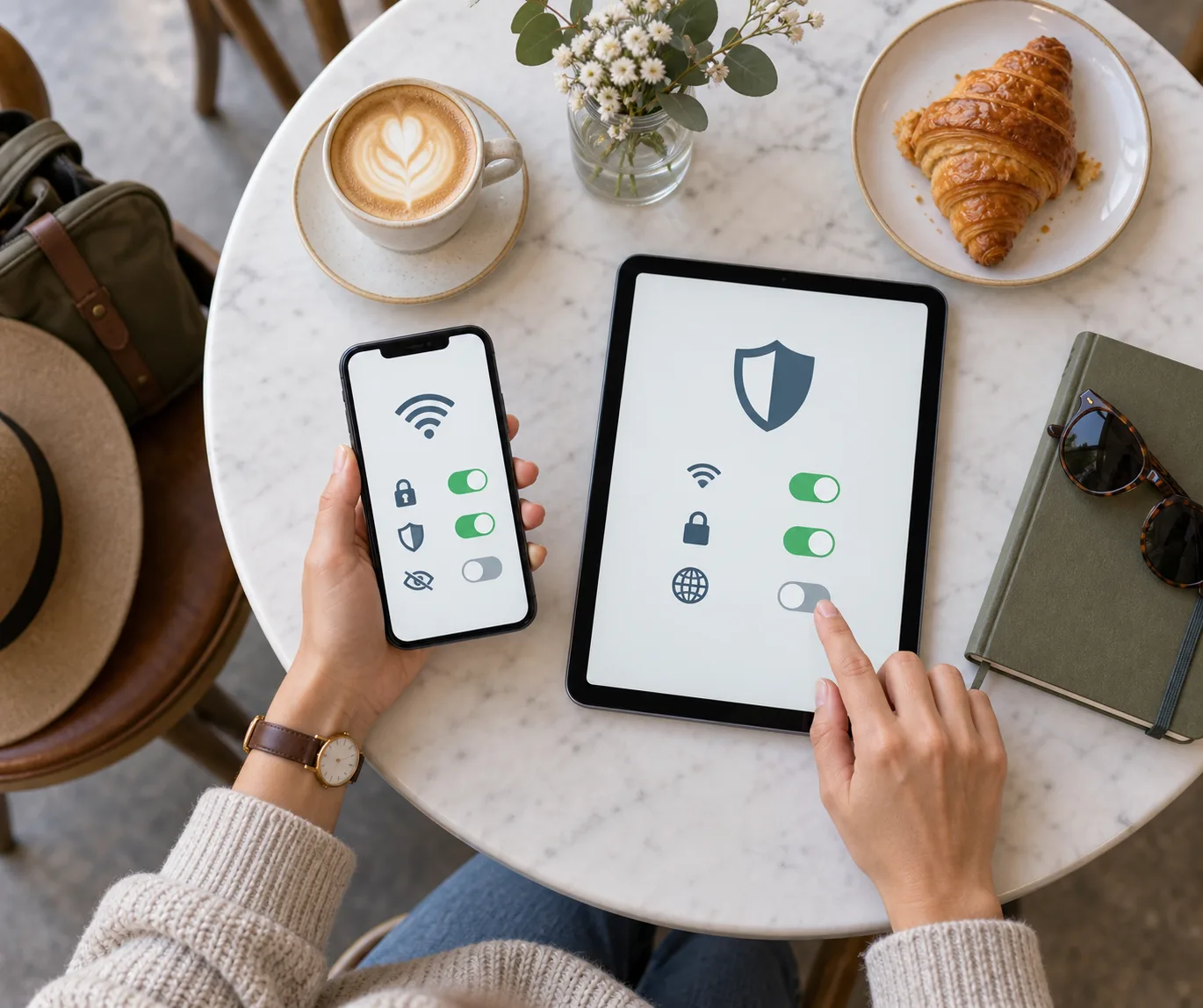
Understand HTTPS, VPNs, and private network addresses
What HTTPS does
HTTPS encrypts data exchanged between your browser or app and the server identified by the certificate. It is essential protection. It does not prove that a merchant is honest, that a domain is spelled correctly, or that a product is real. Criminals can obtain certificates for deceptive domains, so inspect the domain separately and reach important sites through a saved app or bookmark.
What a VPN does—and does not do
A VPN can encrypt traffic between your device and the VPN server, reducing what people on the same local network can observe. An employer may require its VPN for access to internal systems. A VPN cannot undo a password entered into a phishing page, remove malware, repair weak account recovery, or make every download trustworthy. It also shifts some trust to the VPN provider.
Before choosing a personal VPN, research the operating company and jurisdiction, privacy policy, independent security audits, update history, and requested device permissions. Do not rely only on app-store stars or marketing phrases such as “military-grade encryption.” Install and test it on a trusted home connection, including its sign-in and recovery process, before you travel.
Apple Private Wi-Fi Address and Android randomized MAC
Devices use a Media Access Control, or MAC, address to identify themselves on a local network. Apple explains that using a private Wi-Fi address for each network makes it harder for network operators and observers to connect the same hardware address with activity and locations across multiple networks. Android 10 and later provide a randomized MAC address for networks. Android’s Private DNS can protect supported DNS questions and answers, but Google notes that it does not protect everything else and is not a substitute for a VPN.
Keep those privacy features enabled on public networks unless you have a specific compatibility issue. If a connection fails, update the operating system and forget and rejoin the network before turning privacy features off. Follow official IT guidance for a managed school or workplace network.
Quick settings checklist by device
iPhone or iPad
- Review Ask to Join Networks and Auto-Join under Settings > Wi-Fi.
- Tap the information button for the network and confirm that Private Wi-Fi Address is enabled.
- Set AirDrop receiving to Off or a limited audience.
- Afterward, use Forget This Network so the device does not reconnect later.
Android
- Search Settings for “turn on Wi-Fi automatically,” “open network notification,” and “saved networks.”
- Open the network details and review the randomized MAC or privacy setting.
- Keep Private DNS on Automatic or your chosen provider unless a verified compatibility problem requires a change.
- Restrict Quick Share or Nearby Share visibility, then forget the network after use.
Windows or Mac laptop
- Use the public-network profile and disable file, printer, and screen sharing.
- Keep the operating-system firewall on and never bypass a browser certificate warning.
- Use only the employer-approved VPN for company information.
- Lock the screen when you step away and move sensitive documents away from public seating.
Exact menu names change by device and software version. The Settings search box is often the fastest route: try “auto join,” “sharing,” “randomized MAC,” “Private DNS,” or “firewall.”
Three realistic examples
Example 1: Your flight changes at the airport
Reading the departure board or checking the airline’s installed official app is relatively low risk. A text saying “rebook now” and asking you to enter your card again is a separate phishing concern. Open the airline app yourself instead of following the message link. If you are preparing to enter the United States, our Mobile Passport Control guide can help you confirm eligibility and prepare the official app before you need an unfamiliar network.
Example 2: A bank transfer feels urgent at a hotel
Switch to cellular data even if the hotel Wi-Fi uses a shared password. Open the bank’s installed app, verify the recipient, and inspect any approval alert for the expected device and location. If there is no cellular service, delay the transfer or call the bank using a number printed on your card or found in its official app. Do not use a number in an unexpected text.
Example 3: You must send a company file from a café
Use the managed laptop and approved VPN. If your employer provides an “always on” or kill-switch policy, confirm that business apps stop communicating when the VPN drops. Do not route the file through personal cloud storage or personal email. If customer names or account numbers are visible, physical privacy may be the bigger immediate issue; move to a private location.
The two-minute cleanup after use
- Log out of webmail, shopping, and work services.
- Check Downloads for temporary files containing personal information.
- Forget the public network or disable Auto-Join.
- Turn off any file sharing or device discovery you temporarily enabled.
- Disconnect the company VPN when work is complete and turn off a personal hotspot you no longer need.
- Look for unexpected multi-factor prompts, password-reset messages, or new-login alerts.
If an account alert looks wrong, move to cellular data or a trusted home connection. Open the service directly, review recent sessions, sign out unknown devices, change the password, and verify recovery email addresses and phone numbers. If your phone number also stops working unexpectedly, use our SIM-swap protection and response checklist to coordinate account and carrier steps.
Eight common mistakes
- Choosing the strongest signal: It proves proximity, not ownership.
- Looking only at the padlock: A phishing site can use HTTPS too.
- Installing a free VPN on the spot: You have not evaluated the provider, permissions, or data practices.
- Ignoring a captive-portal certificate warning: You may miss a fake portal or a broken connection.
- Starting major updates on public Wi-Fi: Do updates beforehand on a trusted connection.
- Leaving sharing open to everyone: It increases unwanted requests and device exposure.
- Keeping every public network saved: Your device may reconnect to the same name elsewhere.
- Expecting a VPN to stop phishing: It cannot recover information you enter into the wrong site.
Pre-trip checklist
- □ Update phone and laptop operating systems and browsers.
- □ Restrict automatic Wi-Fi joining and delete old public networks.
- □ Confirm Private Wi-Fi Address or randomized MAC settings.
- □ Limit AirDrop, Quick Share, and file-sharing defaults.
- □ Enable multi-factor authentication or passkeys on important accounts.
- □ Update and test the employer-approved VPN, including account recovery.
- □ Verify the personal-hotspot password and expected data limits.
- □ Save tickets, reservation numbers, maps, and emergency contacts offline.
- □ Schedule sensitive financial or identity work for a trusted connection.
For important accounts, review our passkey and account recovery guide before leaving home. An offline recovery plan reduces the chance that you will need to reset a primary email account or search for backup codes while connected to an unfamiliar network.
FAQ
Is password-protected hotel Wi-Fi safe?
A password may keep out casual passersby, but many guests can share it and a look-alike hotspot can copy both the network name and password. Verify the official SSID, keep device protections enabled, and use cellular data or an approved VPN for sensitive work.
Can I use online banking on public Wi-Fi if the site has HTTPS?
HTTPS is essential, but it does not prove that you reached the correct site. For banking, prefer cellular data and the installed official app or a bookmark you created previously. If the task is not urgent, wait until you return to a trusted connection.
Does a VPN make every app safe?
No. A VPN can protect traffic to the VPN server, but it does not stop you from entering a password on a phishing site, installing malware, or approving a fraudulent sign-in request. Use it with current software, official domains, and strong account authentication.
What if an airport Wi-Fi portal asks for personal information?
Some venues request a name or email, but stop if free access requires financial information, a Social Security number, your email password, a certificate, or a device-management profile. Confirm the process at the airport information desk or official website. Use cellular data when you cannot verify it.
Is a personal hotspot always safer?
It generally gives you more control, but it is not absolute protection. Use a strong hotspot password, turn it off when finished, and review connected devices. Phishing and a compromised phone remain risks regardless of the connection type.
I received an unfamiliar login alert after using public Wi-Fi. What should I do first?
Switch to a trusted cellular or home connection. Open the service through its official app or a known address, review sessions, remove unknown devices, change the password, and verify multi-factor and recovery settings. If identity theft or financial loss is possible, contact the institution and follow the personalized steps at IdentityTheft.gov.
This article provides general digital-safety information, not legal, financial, or individualized cybersecurity advice. Policies for managed work and school devices take priority.
Official sources consulted
- Federal Communications Commission — Wireless Connections and Bluetooth Security Tips
- Cybersecurity and Infrastructure Security Agency — Secure Our World
- Federal Trade Commission — Protect Your Personal Information From Hackers and Scammers
- Apple Support — Use private Wi-Fi addresses on Apple devices
- Google Android Help — Manage advanced network settings
[…] Smartor 편집팀 September 12, 2026 Read this guide in English → […]