
Digital Legacy Planning Guide: Apple, Google, and Family Access Checklist
Smartor 편집팀
September 25, 2026

Photos, cloud documents, subscriptions, and online accounts are easy to overlook because they do not sit in a visible filing cabinet. If you become unable to manage your accounts for a long period or die, your family may not even know which services contain important records. Guessing passwords or repeatedly trying to unlock a device is not a reliable plan. Each provider has its own access limits, documentation requirements, and deletion process, and some purchases or encrypted secrets cannot be transferred even to a person you name.
A sound digital legacy plan is not a master list of passwords handed to one person. It separates an inventory of what exists, each provider’s official legacy tools, the location of required documents, and your instructions for preservation or deletion. This guide explains how to create a practical baseline in about an hour using Apple Legacy Contact, Google Inactive Account Manager, and secure recovery planning. It is general information, not individualized legal, tax, or financial advice. Decisions involving a will, trust, business assets, copyrights, or state inheritance law should be reviewed with an appropriately qualified professional in your jurisdiction.
A digital legacy is much broader than one email account. A single login can contain family photos that should be preserved alongside payment credentials that should remain restricted. Sorting accounts into six groups makes it easier to decide who should handle each task.
Ownership, a license to use content, and permission to access data are not the same thing. A digital purchase may not be transferable, and a platform’s legacy feature may not unlock every category of information. Do not assume that everything in an account can be inherited or that knowing a password gives a family member proper authority. Provider terms, official legacy procedures, and your legal documents must work together.
Trying to catalog every online account in one sitting often leads to an unfinished plan. Start with the accounts that control recovery for other services, then expand the inventory during a scheduled review.
On paper or in an encrypted document, list the service name, its purpose, and its priority. Do not write passwords at this stage. Put your primary email, Apple or Google account, mobile carrier, cloud photo library, password manager, and any domain or business account at the top because they can affect recovery elsewhere.
For each item, choose an intended result: preserve, transfer selected data, memorialize, cancel, or delete. An instruction might read, “preserve family photos after transfer,” “memorialize or delete personal social media,” “cancel streaming subscriptions,” or “transfer the business domain to the co-owner.” Clear outcomes are more useful than a list of usernames with no explanation.
One person does not need to control everything. You may choose one person for family photos and personal records, another for business systems, and a legally authorized representative for estate documents. Leave a one-page role sheet so they understand where responsibilities begin and end.
Ask each person first. An unexpected access key or sensitive document can look like phishing and may be discarded. Explain that you are not giving them your password or immediate access; you are naming them so they can use the provider’s official process if the need arises.
Apple describes Legacy Contact as the official, secure way to name someone who can request access to data stored in your Apple Account after your death. On an iPhone or iPad, the path is generally Settings → your name → Sign-In & Security → Legacy Contact. On a Mac, look under your Apple Account’s Sign-In & Security settings. Labels can vary slightly by operating-system version and language.
Apple says the person you choose does not need an Apple device or Apple Account. However, a later access request requires both the access key created during setup and your death certificate. Confirm that the person actually received the key. Keeping a printed copy with your estate-planning documents can provide a separate backup.
Legacy access has important limits. It may include photos, messages, notes, files, and device backups. Apple specifically says that purchased movies, music, books, subscriptions, and information stored in iCloud Keychain—including payment information, passwords, and passkeys—are not accessible. Do not assume that adding a contact transfers purchases or every secret in the account. Apple also allows more than one Legacy Contact, but any one of them may individually make decisions about the account data, including deletion, so choose carefully.
Google’s Inactive Account Manager lets you decide who should be contacted and what data may be shared after the account has been inactive for the period selected in your plan. Google’s official help page says you can choose up to 10 people, share all or only selected data types, and make different choices for different people. Verify that your current recovery email and phone number are accurate while you are there.
Google uses multiple signals to assess activity, including sign-ins, My Activity, Gmail use, and Android check-ins. This is not simply a message scheduled for one calendar date. Review the waiting period, the ways Google should contact you before the plan activates, the message sent to trusted contacts, the data each person may receive, and whether the account should eventually be deleted.
Apply least access. A relative responsible for family photos may not need business documents or an entire mailbox. At the same time, make sure important material such as Drive originals, Photos, or a YouTube channel is not accidentally omitted. Google says it reserves the right to delete a personal account and its data after at least two years of inactivity across Google. Its inactive-account policy does not apply in the same way to accounts created through work, school, or another organization, so organizational accounts need a separate handoff with the administrator.
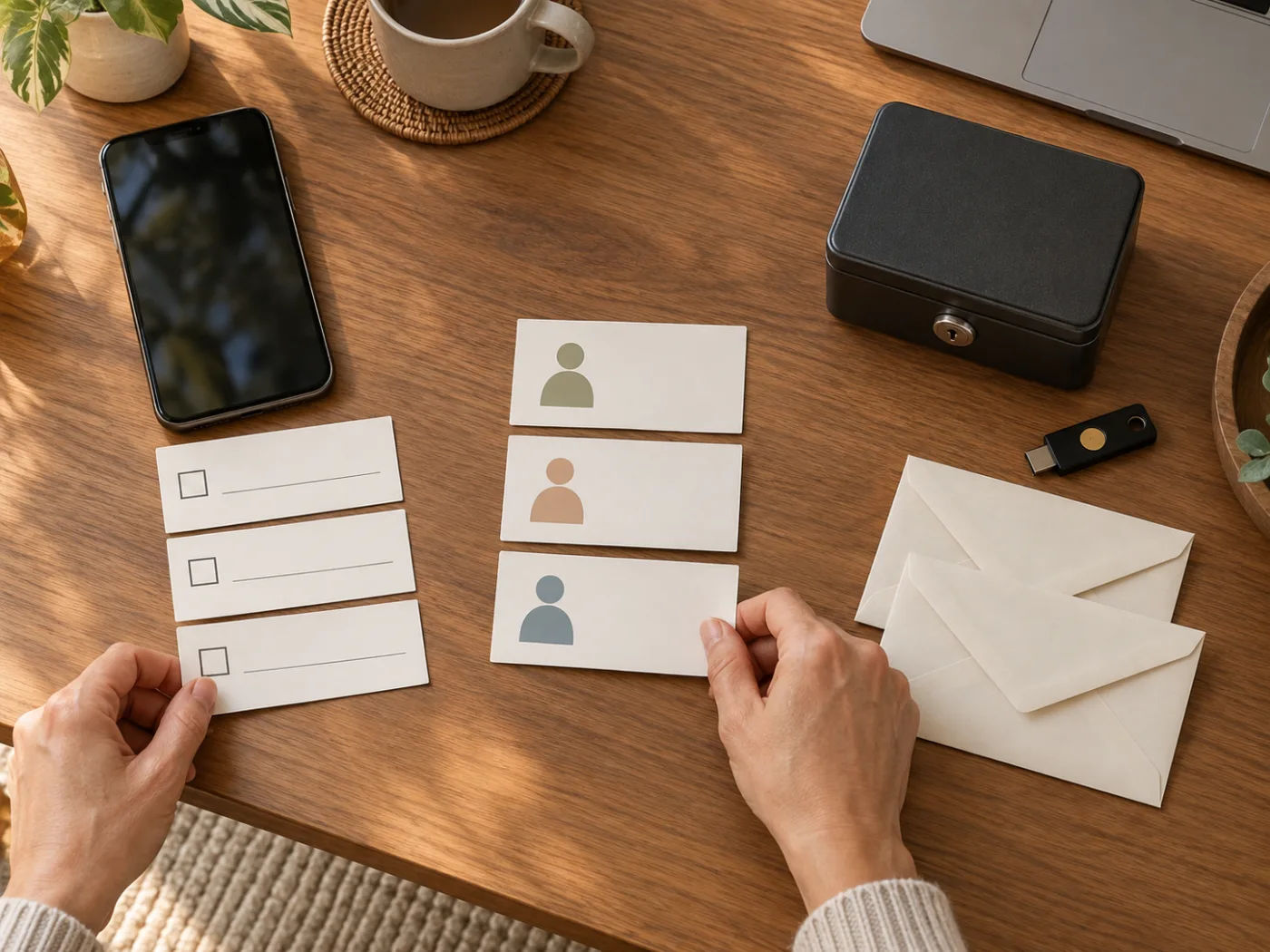
Accounts not covered by a provider’s legacy feature still need a recovery plan. Check your password manager’s official documentation for an emergency-access feature, emergency kit, or designated contact option. Waiting periods, approval rules, and the scope of access differ by product, so seeing the feature’s name is not proof that it is fully configured.
Avoid putting a master password, device passcode, and one-time recovery codes together in an ordinary notes app or shared document. Putting current passwords directly in a will can also create problems: passwords change, and the document’s exposure may expand during probate. Discuss that decision with a local professional. A safer structure is usually:
For passkey and device-loss preparation, see Smartor’s Passkey Setup and Account Recovery Guide. Because criminals can impersonate a relative during an emergency, pair the plan with the AI Voice and Video Impersonation Scam Checklist.
Create a location sheet that says where an item can be found without revealing the secret itself. For example: the original will is with the attorney or in a fire-resistant safe; the Apple access key is in a sealed estate folder; the Google plan is stored in that account’s settings; and the password-manager emergency document is in a separate safe. Record the responsible person, contact information, and last review date, but do not include the master password.
Schedule a review in six months and after major events such as marriage, divorce, a move, a death in the family, a change in business partners, or a new primary email address. Leaving an outdated contact in place after the relationship or contact information changes is one of the most common failures.
Review exactly what Apple Legacy Contact may make available, and maintain a separate shared album or encrypted backup for the photos that matter most. In Google, consider sharing only photo-related data with the chosen person. Write a clear instruction such as, “Preserve family photos; delete private email and notes through the provider’s official process.” If the platform cannot separate the data as precisely as you want, create that separation while you are able to manage the account.
Separate domain registration, hosting, payment processing, social-media administration, cloud originals, and code from personal memory accounts. Add a co-owner or successor through formal organizational roles instead of sharing your personal login. Ownership transfer and legal or tax responsibility depend on the service terms and business structure, so obtain appropriate advice. An individual Legacy Contact should not be assumed to have authority over company property.
The child can explain options while the parent signs in and makes the choices. After receiving an Apple access key, the child should confirm safe receipt without treating it as present permission to read email or photos. If decision-making capacity, a power of attorney, or guardianship is involved, do not rely on a consumer legacy feature alone; seek advice appropriate to the situation and jurisdiction.
No. Legacy Contact supports an access request after death. Apple’s official process requires the access key and a death certificate. Naming someone does not give that person an ordinary login to your current account, but the key should still be protected as a sensitive document.
Apple says payment information, passwords, and passkeys stored in iCloud Keychain are inaccessible to a Legacy Contact. Purchased movies, music, books, and subscriptions are also excluded. Use the official recovery or legacy process for each other service you want addressed.
Google’s help page says trusted contacts receive a notice after the account has been determined inactive according to the plan, not during initial setup. Tell the person about the role yourself so the eventual message is not mistaken for phishing.
No. Google says you can select up to 10 people and choose different data types for different recipients. Apply the minimum access each role needs and review those choices periodically.
That creates security, privacy, provider-terms, and authority risks. Prefer Apple Legacy Contact, Google Inactive Account Manager, provider-specific deceased-user procedures, secure recovery planning, and properly prepared legal documents.
There is no universal answer. A passcode is highly sensitive, and legal-document disclosure rules vary. Consider secure offline storage, password-manager features, and official recovery options, and discuss the decision with a qualified local professional.
Not necessarily. Google’s personal inactive-account policy does not apply in the same way to organizational accounts. The employer or school may own and administer the data, so follow its administrator, HR, legal, and formal handoff procedures.
A six-month review is practical, plus an immediate review after marriage, divorce, a move, a death, a business change, or a new primary email address or phone number. Provider policies and menu paths can change, so verify them in current official documentation.
A useful digital legacy plan does not expose every account key. It identifies important accounts and desired outcomes, names trusted people through official Apple and Google tools, and tells them where access keys and legal documents are stored. Keep actual secrets protected, hand off business systems through organizational permissions, and revisit the scope every six months.
You do not have to finish every account today. Organizing primary email, photos, the password manager, the carrier account, and Apple and Google first removes the largest obstacles for a family. The goal is not to enable a secret login; it is to let the right person preserve or close the right information through a verified process when the need arises.
브라우저 메뉴에서 앱 설치 또는 홈 화면에 추가를 선택해 주세요.
[…] Smartor 편집팀 September 25, 2026 Read this guide in English → […]